

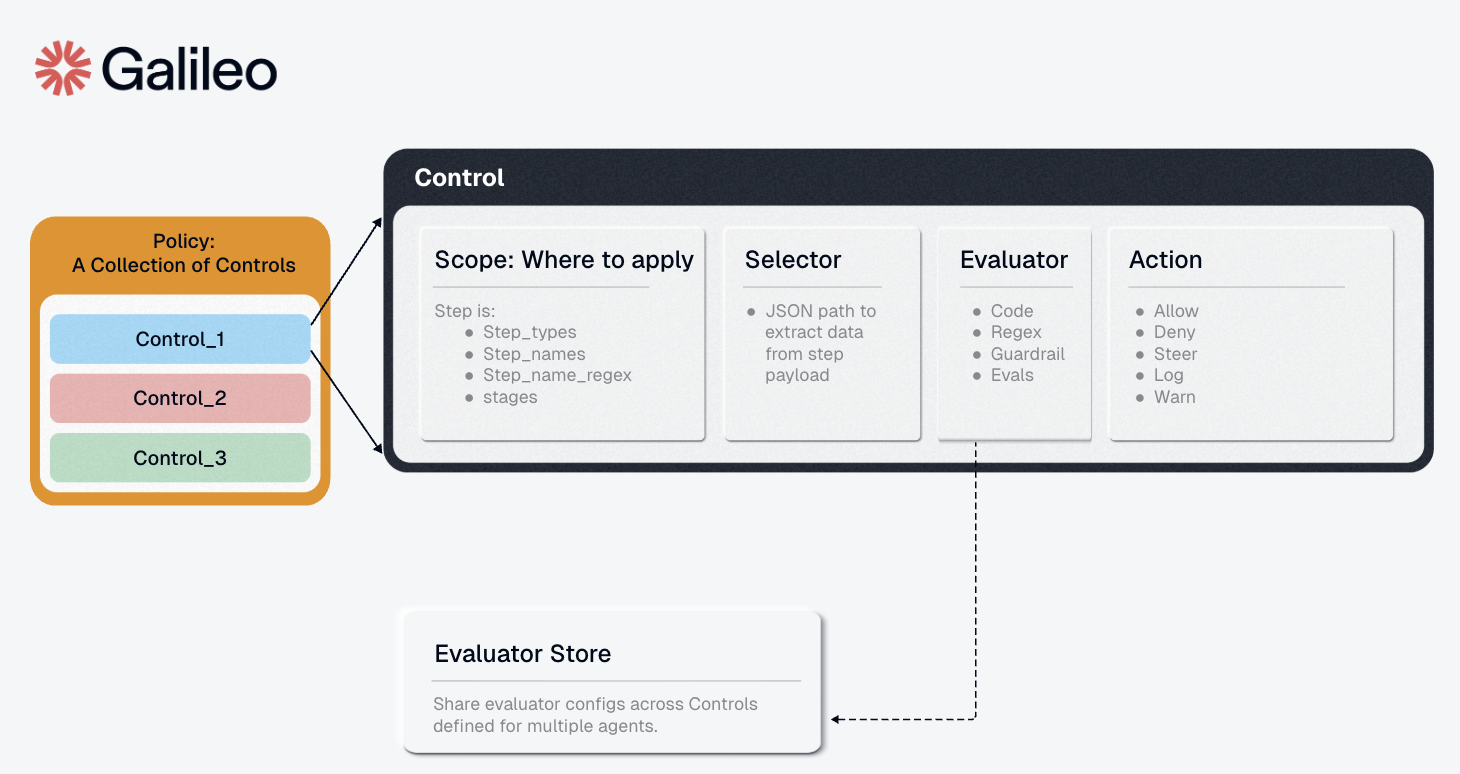
1. Scope (When to Check)
The Scope defines which steps trigger the control—acting as a filter to select specific sections of your agent workflow to monitor. Fields:-
step_types: List of step types (['tool', 'llm']). If null, applies to all types. -
step_names: List of exact step names to target (e.g.,['search_db', 'send_email']) -
step_name_regex: Regex pattern for step name matching (e.g.,"^db.*"matches all “db_” prefixed steps) -
stages: When to evaluate -['pre', 'post']-
'pre': Check before execution (block bad inputs, prevent prompt injection) -
'post': Check after execution (filter bad outputs, redact PII)
-
Example 1: Apply to all tool steps before execution
Example 2: Target specific database operations
Example 3: Use regex to match multiple steps
Example 4: Full scope configuration
2. Condition (What and How to Check)
The Condition is a recursive boolean tree. Leaf conditions pair aselector with an evaluator, and composite conditions can combine child conditions with and, or, and not.
Example 1: Leaf condition that checks tool output for PII
Example 2: Composite condition with and and not
2.1 Selector (What to Check Inside a Leaf)
Inside a leaf condition, the Selector specifies which portion of the step’s data to extract and pass to the evaluator for analysis. It uses a path specification to navigate the step object. Field:path: Dot-notation path to the data you want to evaluate
-
"input"- Entire input to the step -
"output"- Step’s output/result -
"input.query"- Specific parameter within input -
"input.user_message"- User message field -
"name"- The step/tool name itself -
"context.user_id"- Context metadata -
"*"- All available payload data
Example 1: Check tool output for PII
Example 2: Validate specific input parameter
Example 3: Check user message in LLM input
Example 4: Access context metadata
2.2 Evaluator (How to Check Inside a Leaf)
Inside a leaf condition, the Evaluator receives the data extracted by the selector and evaluates it against configured rules, returning whether the data matches specified criteria. Components:-
config: Evaluator-specific configuration, validated against the evaluator’s schema -
metadata: Optional evaluator identification
Example 1: Regex evaluator to detect PII
Example 2: List evaluator for banned terms
Example 3: AI-powered toxicity detection with Luna-2
To use this evaluator, install the package:Example 4: Complex regex for multiple PII types
3. Action (What to Do)
The Action defines what happens when the evaluator matches/detects an issue. Fields:-
decision: The enforcement action to take-
"allow"- Continue execution (useful for allowlist controls) -
"deny"- Hard stop execution (blocks the request) -
"steer"- Provides corrective guidance to help agents satisfy control requirement -
"warn"- Log a warning but continue execution -
"log"- Log the match for observability only
-
-
metadata: Optional additional context (JSON object)
Important: “Deny Wins” Semantics
Agent Control uses “deny wins” logic: if any enabled control with adeny action matches, the request is blocked regardless of other control results. This ensures fail-safe behavior.
Example 1: Block on match
Example 2: Warn without blocking
Example 3: Action with metadata
Example 4: Action with steer and steering context
Complete Control Example
Putting it all together - a control that blocks Social Security Numbers in tool outputs:Defining Controls
You can create and configure controls via the SDK, API, or UI.Example: Block PII in Output (Regex)
Via Python SDK:\b\d{3}-\d{2}-\d{4}\b. Python raw strings render that as r"\b\d{3}-\d{2}-\d{4}\b", while JSON payloads must escape backslashes as "\\b\\d{3}-\\d{2}-\\d{4}\\b".
Example: Block Toxic Input (Luna-2 AI)
To use this evaluator, install the package and restart the server.
Note: For the Luna-2 evaluator, set the GALILEO_API_KEY environment variable. See the Evaluators for all available evaluators.